Install Tailscale on Ubuntu: A 5-Minute Guide for Non-Technical Users
Secure SSH access without opening port 22 — just 3 commands
At a Glance
Updated 101 days agoStep-by-step guide to installing Tailscale on Ubuntu for secure remote SSH support without opening port 22 to the public internet.
Install Tailscale on Ubuntu: A 5-Minute Guide for Non-Technical Users
You want to let someone SSH into your machine for remote technical support, but you're worried about opening port 22 to the public internet. Tailscale is the perfect solution — it creates a secure private network with zero router configuration and zero open ports.
What is Tailscale?
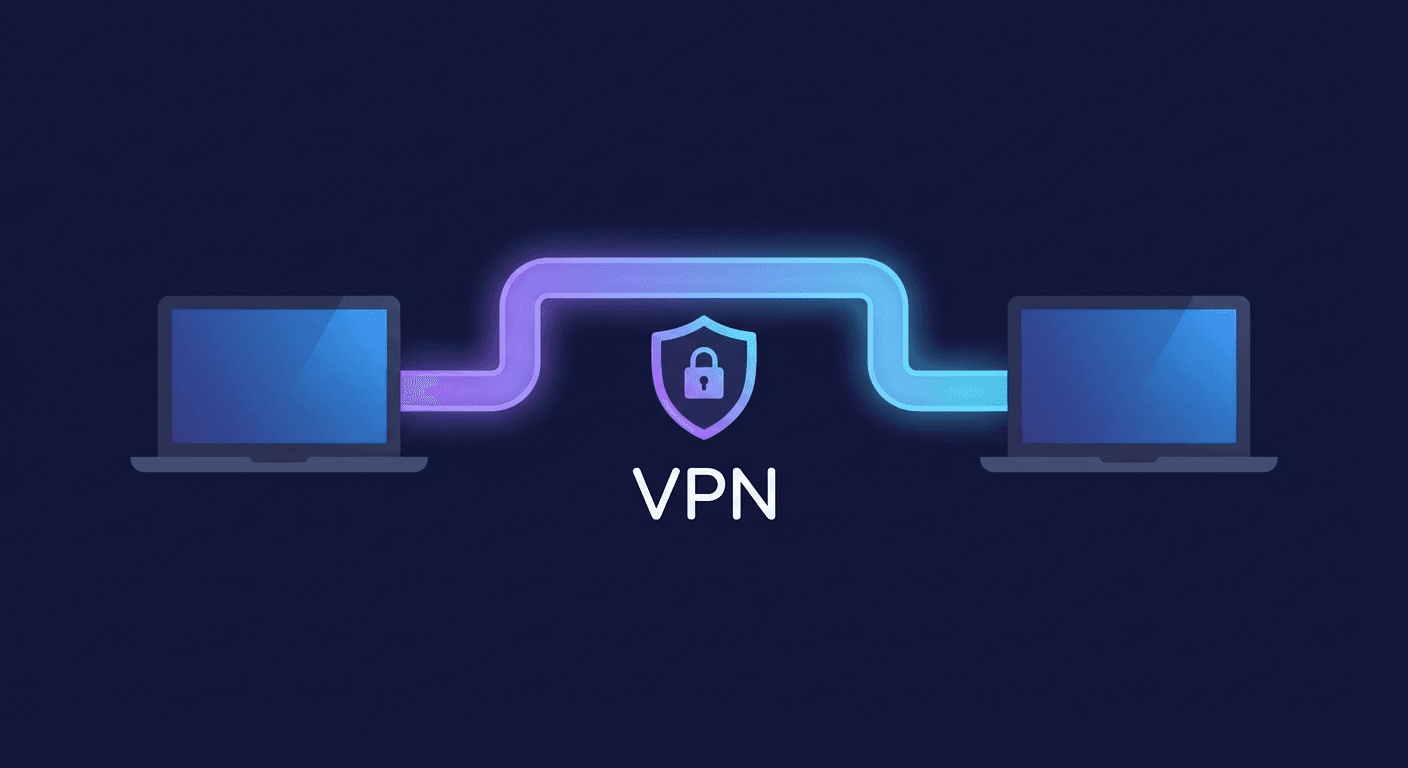
Tailscale turns your devices into a secure private network, no matter where they are in the world. Every device on Tailscale gets its own private IP address (in the 100.x.x.x range) and can connect to each other as if they were on the same home LAN.
Key benefits:
- No port forwarding on your router or firewall
- End-to-end encrypted using WireGuard
- Up and running in minutes — no networking knowledge required
- Free for individuals and small teams (up to 3 users)
Prerequisites
- Ubuntu 18.04 or later
sudo(administrator) access- A free Tailscale account — sign up at tailscale.com
Step 1: Install Tailscale
Open Terminal and run this command. It automatically downloads and installs the correct version for your Ubuntu:
curl -fsSL https://tailscale.com/install.sh | sh
Wait 30–60 seconds. When the Terminal returns to the normal prompt without any red error messages, installation is complete.
Step 2: Activate and Log In
Start Tailscale with:
sudo tailscale up
Terminal will display a link like this:
To authenticate, visit:

	https://login.tailscale.com/a/xxxxxxxxxxxxxxxxxx
Copy that link and paste it into your web browser. Sign in with Google, Microsoft, or GitHub. Once authenticated in the browser, return to Terminal — you'll see a success message.
Important: The person supporting you (e.g., Tuan) also needs Tailscale installed on their machine. To connect to each other, both devices need to be on the same Tailscale network — either by using the same account or by using the "Share device" feature in the Tailscale admin console.
Step 3: Get Your Tailscale IP Address
tailscale ip -4
This returns an IP address like:
100.64.0.1
This is what they'll use to SSH into your machine.
Related Resources
Comments (0)
Loading comments...
Stay Updated
Get weekly insights on AI, automation, and shipping fast. Join 500+ founders.
Related Articles

API Proxy vs. Antigravity: The Legitimate Path and the Dangerous Shortcut
API proxies and Antigravity both promise cheaper AI — but the mechanics are completely different. One is an official reseller, the other borrows OAuth tokens in violation of ToS. In February 2026, Google acted. Here's the analysis you need before making a choice.

API Proxies & Aggregators: Use Premium AI at Optimal Cost
Managing a dozen separate API accounts is every AI builder's nightmare. Proxies and aggregators solve it cleanly: one key, one endpoint, every model — with a breakdown of OpenRouter, Z.AI, LiteLLM, and Helicone.

Mastering API Keys: Your Gateway to AI Power
API Keys are the bridge between your applications and AI power. This guide covers everything from how they work, to getting keys from OpenAI, Google Gemini, Anthropic Claude, and DeepSeek — and how to use them securely.